 Dropdesk
Add to Chrome
Dropdesk
Add to Chrome
Free browser extension & phone app
It’s on your phone.
Drop it onto
your computer.
Dropdesk is a free browser extension and phone app that sends photos, files and notes from your phone to your computer, and back — no cable, no account, no AirDrop. Pick something on your phone and drag it straight into any website. Drop files on the panel to send them the other way.
 Add to Chrome


Free · no account · Chrome, Edge & Brave

Nothing to learn
Connect once with a code. After that files move in either direction.

The five-second job that takes five minutes
Set it up once
The extension lives on your computer. The app lives on your phone. Connect them with a code.

-
1
Open the app
Free on the App Store and Google Play. Nothing to sign up for.
-
2
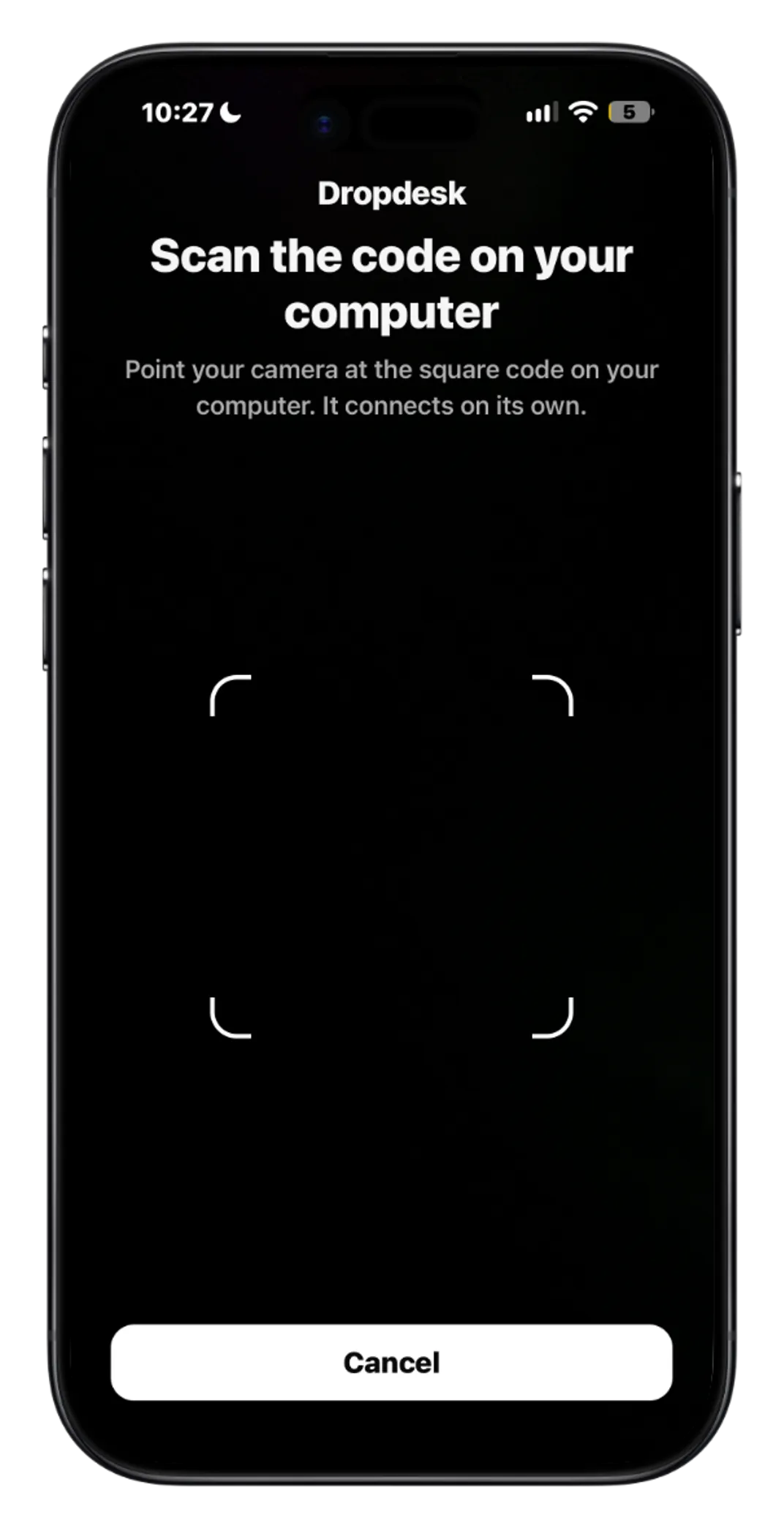
Scan the code
Point it at the square in the Dropdesk panel on your computer.
-
3
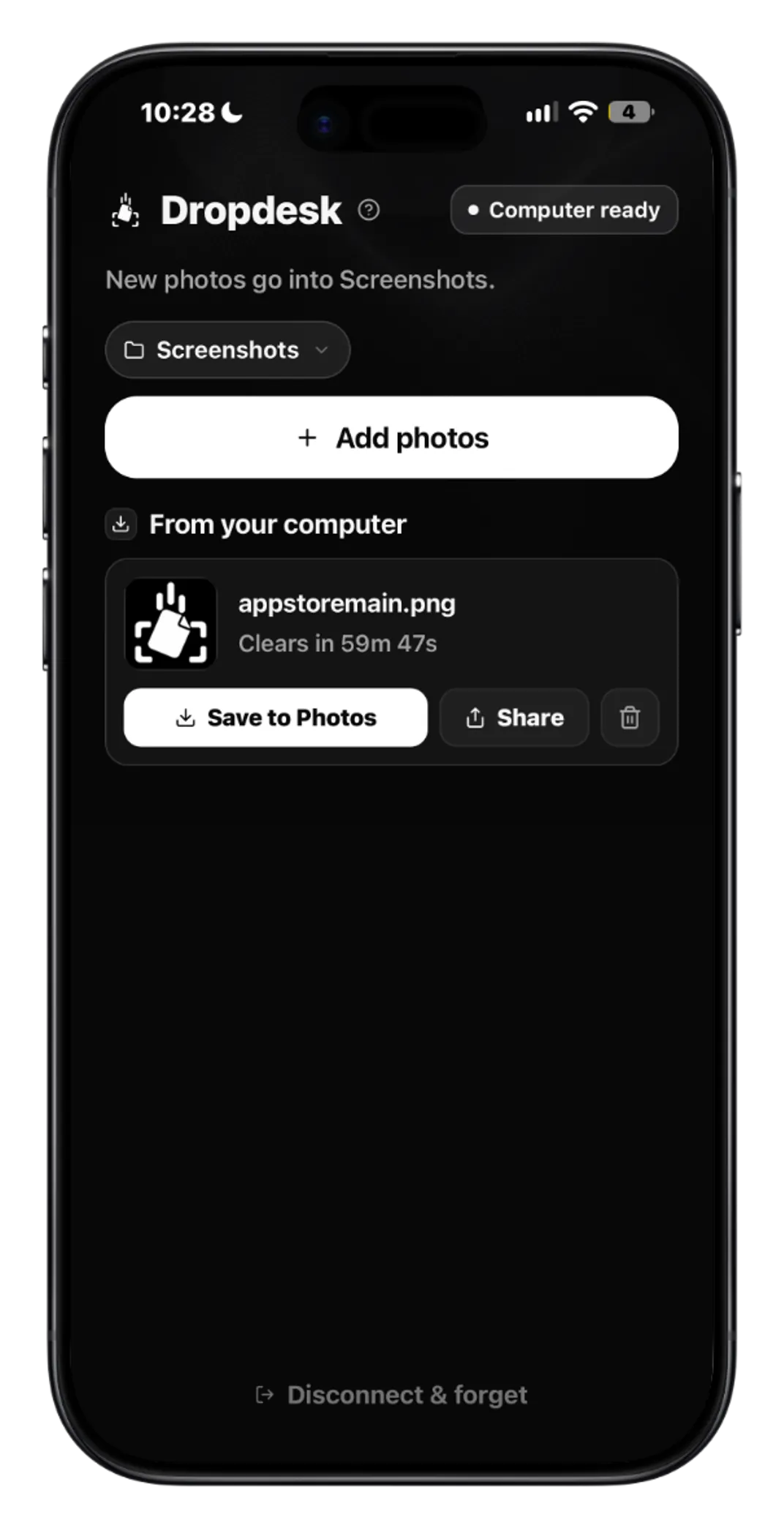
You’re connected
Photos, files and notes now move between your phone and computer.
Both directions
The same connection carries files each way.
Pick a photo, file or note on your phone and it shows up in the panel, ready to drag into any upload field.
Drag a file from your desktop onto the panel and it lands on your phone, ready to save or share.
Made for the small stuff
The transfers that interrupt real work.
Upload ID photos
A licence or passport shot, dragged straight into a desktop form.
Expense receipts
Onto your computer without emailing it to yourself first.
Marketplace listings
Phone photos into eBay, Marketplace or Depop without a cable.
Codes & links
A confirmation number, copied on your phone, pasted on your desktop.
Private by default
Dropdesk never asks who you are. Files are sealed on your phone, held for minutes, then gone.
- AccountNone. No email, password or profile. You connect with a six-digit code.
- EncryptionFiles are encrypted on your device before upload. The server only ever holds ciphertext.
- RetentionTransfers delete themselves after 5 minutes, or up to 8 hours if you tap Keep.
- ClipboardRead only the moment you tap Send. Nothing is watched in the background.
Questions
Yes. The extension and the app are both free, with no account and no paid tier. It exists because emailing yourself a photo is annoying.
No. You pair the app and the extension with a six-digit code or a QR scan. There is nothing to sign up for.
Chrome, Edge and Brave. Anything built on Chromium with Chrome Web Store extensions works. Safari and Firefox are not supported yet.
No. Files are encrypted on your device before they upload, so the server only ever holds ciphertext. Transfers delete themselves within minutes.
50 MB per file today, which covers photos, screenshots, PDFs and short clips. Larger files are on the list.
Both. The app is free on the App Store and Google Play, and it works the same on either.
Guides
The longer answers, if you’re weighing your options.
Set it up once. Then forget it’s there.
Add the extension to your computer, then connect your phone.