 Dropdesk
Add to Chrome
Dropdesk
Add to Chrome
Step-by-step
How to use Dropdesk
Photos, files and notes between your phone and your computer. No account. Setup takes about a minute. Do the computer part first.
1 On your computer
- Add the extensionOpen the Chrome Web Store listing and click Add to Chrome, then Add extension. Works in Chrome, Edge and Brave.
- Open the panelClick the puzzle-piece icon near the address bar, then Dropdesk. A side panel opens with a QR code and six digits.
 Add to Chrome

2 On your phone
- Get the appFree on the App Store (iPhone) or Google Play (Android).
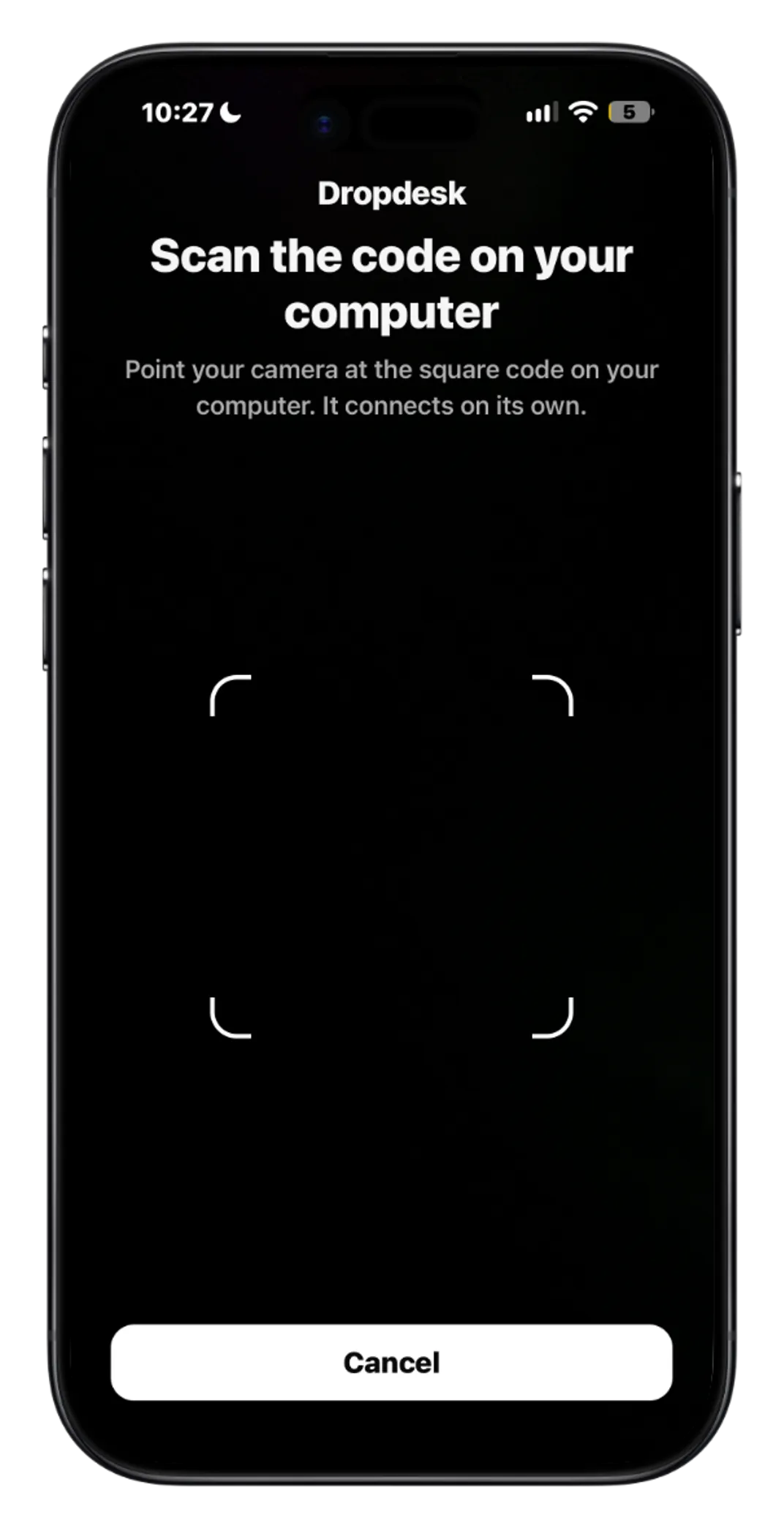
- ConnectTap Scan code and point the camera at the square on your computer, or tap Enter 6-digit code and type the digits. It connects automatically.
- Send somethingTap the + button to pick a photo, send copied text, or use Share from any app and choose Dropdesk.


3 Back on your computer
- Files land in the panelWhatever you send from your phone shows up here within a few seconds.
- Drag or copyDrag a photo into any upload box on a website. For notes, click Copy and paste wherever you need.
- Send files backDrop a file from your computer onto the panel, or click Send to phone. It lands in the app, ready to save or share.

Good to know
- Scanning only works while Dropdesk is open on your computer with a live code.
- Tap Preview without connecting in the app to look around first.
- Files delete themselves after about 5 minutes, or up to 8 hours if you tap Keep.
- Trust this computer to skip the code for 30 days on a device you own.
- Questions? pristinefr@gmail.com